
License Activation
Activating Gitea Enterprise enables premium features for your instance. Follow the steps below to find your instance ID, obtain a license (or request a trial), and upload it through the administrator interface.
1. Find your instance ID
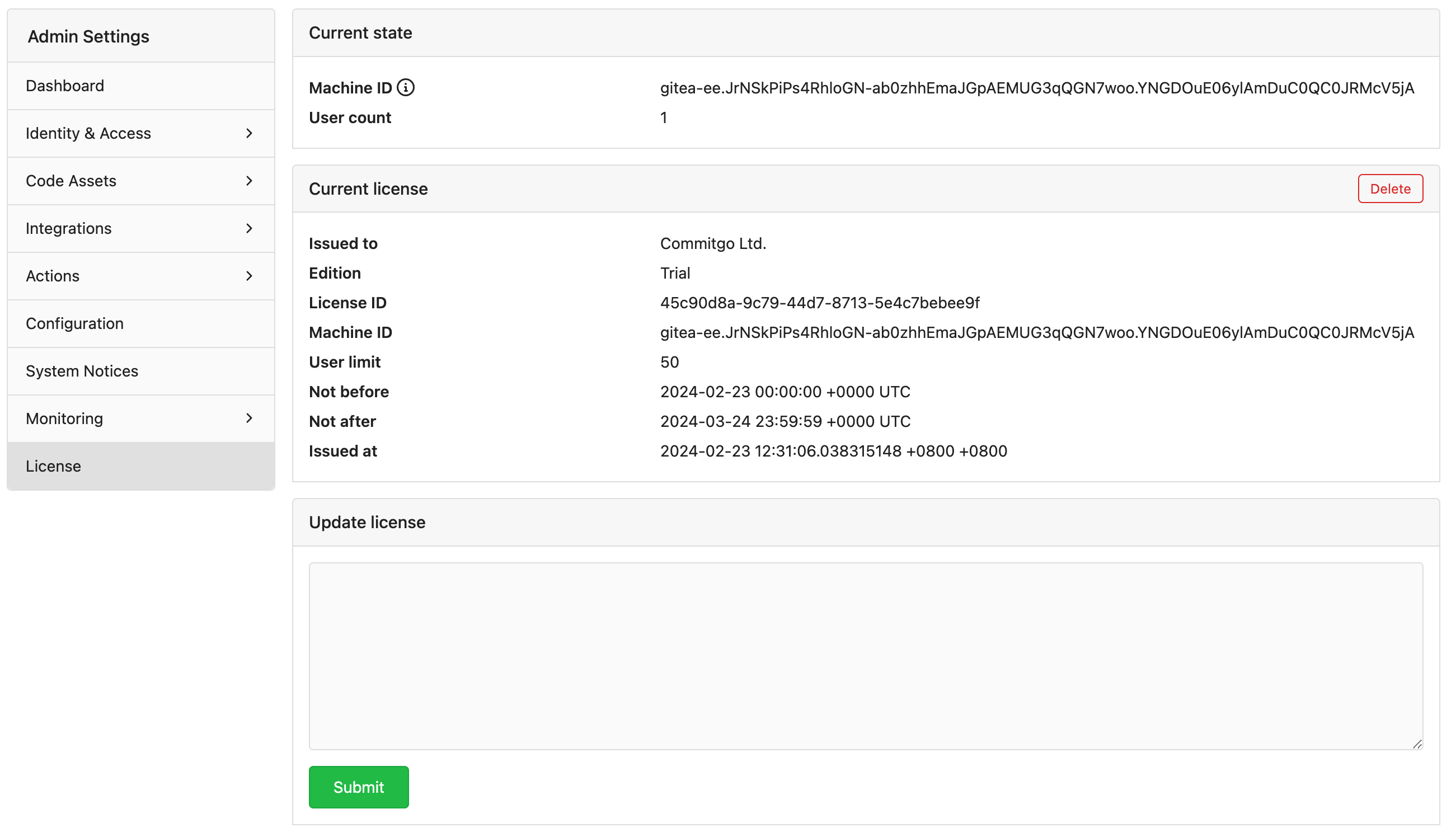
Section titled “1. Find your instance ID”- After installing Gitea Enterprise, sign in to your instance as an administrator.
- Navigate to Site Administration -> Enterprise License.
- Copy the Instance ID shown on the page. You will need it when requesting or purchasing a license.
2. Obtain a license
Section titled “2. Obtain a license”You can obtain a license through the online customer portal, or by email and direct payment.
Customer portal
Section titled “Customer portal”- Visit the Gitea customers portal and sign in with your organization account.
- Choose one of the following options:
- Start a trial: Select Request Trial, enter the required user count and paste your instance ID, then submit the form. A trial license (typically 30 days) will be issued automatically.
- Purchase a subscription: Create a new license with the required user count and term length, paste your instance ID, then complete the checkout flow.
- Download the generated
license.keyfile and store it in a secure location.
Email and direct payment
Section titled “Email and direct payment”- Contact Gitea support by email.
- Provide your instance ID, the required user count and subscription term, and arrange direct payment.
- The Gitea team will send you the corresponding
license.keyfile.
3. Upload the license in Gitea Enterprise
Section titled “3. Upload the license in Gitea Enterprise”- Sign in to your Gitea Enterprise instance as an administrator.
- Navigate to Site Administration -> Enterprise License.
- Click Upload License, select the
license.keyfile you obtained, and confirm. - The page displays the license status, expiration date, and user count once the upload succeeds.
4. Verify, renew, and rotate
Section titled “4. Verify, renew, and rotate”- Post-upgrade checks: After upgrading or redeploying Gitea Enterprise, revisit Site Administration -> Enterprise License to ensure the license is still valid.
- Renewals and resizing: Use the customers portal or contact Gitea support by email to renew, resize, or replace a license. Upload the updated
license.keythrough the same administrator page. - Security: Treat the license file as a secret. Store it in an access-controlled vault and limit who can download or upload it.
Once the license is active, all Enterprise functionality becomes available immediately—no service restart is required.