
SAML
Configuring Gitea as a SAML 2.0 Service Provider
Section titled “Configuring Gitea as a SAML 2.0 Service Provider”- Navigate to
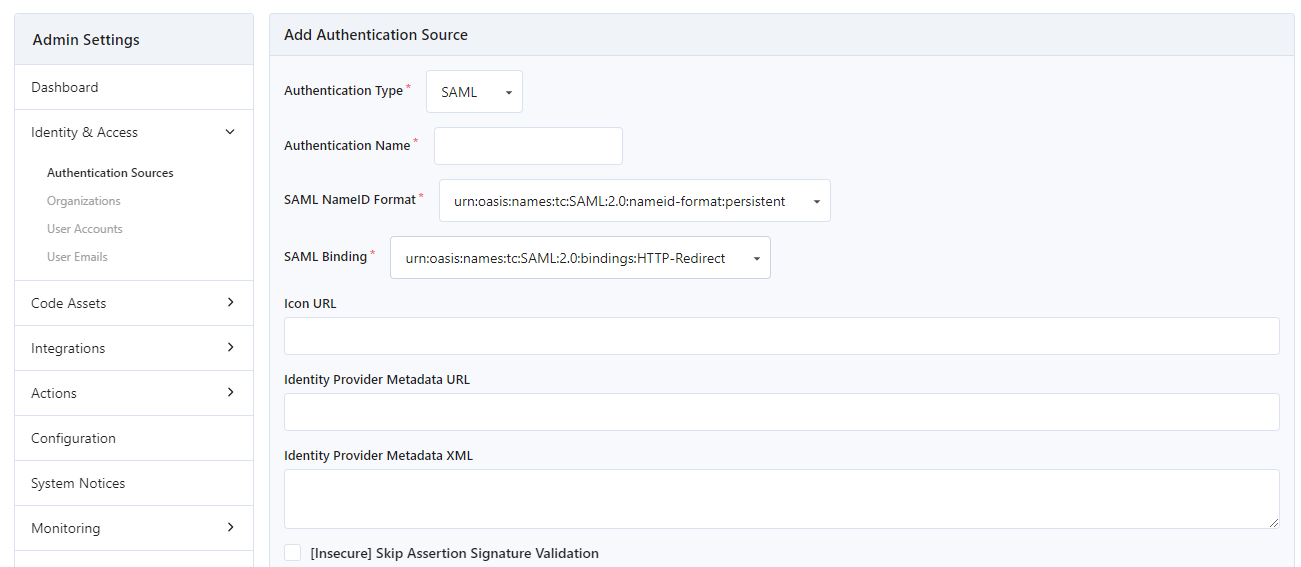
Site Administration > Identity & Access > Authentication Sources. - Click the
Add Authentication Sourcebutton. - Select
SAMLas the authentication type.
Settings
Section titled “Settings”-
Authentication Name(required)- The name of this authentication source (appears in the Gitea ACS and metadata URLs)
-
SAML NameID Format(required)- This specifies how Identity Provider (IdP) users are mapped to Gitea users. This option will be provider specific.
-
SAML Binding(required)- The type of SAML binding you want to use. Right now only HTTP-Redirect and HTTP-Post are supported.
- It only selects how the
AuthnRequestis sent to the IdP. It does not change the assertion consumer service, which is always advertised with the HTTP-POST binding.
-
Icon URL(optional)- URL of an icon to display on the Sign-In page for this authentication source.
-
Identity Provider Metadata URL(optional if XML set)- The URL of the IdP metadata endpoint.
- This field must be set if
Identity Provider Metadata XMLis left blank.
-
Identity Provider Metadata XML(optional if URL set)- The XML returned by the IdP metadata endpoint.
- This field must be set if
Identity Provider Metadata URLis left blank.
-
[Insecure] Skip Assertion Signature Validation(optional)- This option is not recommended and disables integrity verification of IdP SAML assertions.
-
Service Provider Certificate(optional)- X.509-formatted certificate (with
Service Provider Private Key) used for signing SAML requests. - A certificate will be generated if this field is left blank.
- X.509-formatted certificate (with
-
Service Provider Private Key(optional)- DSA/RSA private key (with
Service Provider Certificate) used for signing SAML requests. - A private key will be generated if this field is left blank.
- DSA/RSA private key (with
-
Email Assertion Key(optional)- The SAML assertion key used for the IdP user’s email (depends on provider configuration).
-
Name Assertion Key(optional)- The SAML assertion key used for the IdP user’s nickname (depends on provider configuration).
-
Username Assertion Key(optional)- The SAML assertion key used for the IdP user’s username (depends on provider configuration).
-
Group Assertion Key(optional)- The SAML assertion key used for the IdP user’s group names (depends on provider configuration).
-
Group assertion value for administrator users(optional - requires group assertion key above)- If not empty, users with the same group assertion value will be administrator users.
-
Group assertion value for restricted users(optional - requires group assertion key above)- If not empty, users with the same group assertion value will be restricted users.
-
Map assertion groups to Organization teams(optional - requires group assertion key above)- A JSON map. Should be like:
{"GroupAssertionValue": {"GiteaOrgName": ["GiteaOrgTeamName1", "GiteaOrgTeamName2"]}} -
Enable Auto Registration(optional)- If checked, the corresponding user will be automatically created in Gitea after first sign in. The user’s username and email come from the assertion.
Configuring a SAML 2.0 Identity Provider to use Gitea
Section titled “Configuring a SAML 2.0 Identity Provider to use Gitea”- The service provider assertion consumer service url will look like:
http(s)://[mydomain]/user/saml/[Authentication Name]/acs. - The ACS is advertised in the service provider metadata with the HTTP-POST binding, whatever
SAML Bindingis set to. The SAML profiles do not allow the response to be sent with the HTTP-Redirect binding, so an IdP that follows the metadata posts the assertion to the ACS.
Sign-in behavior
Section titled “Sign-in behavior”SAML sign-in works like OAuth2 sign-in:
- Account linking: with
ACCOUNT_LINKINGset toautoorloginin the[oauth2_client]section, a SAML identity can be linked to an existing account, and a new account can be registered from the link page. The group settings of the source (administrator, restricted, team mapping) are applied when the identity is linked. - Primary sign-in method: a SAML source can be set as the Primary sign-in method in its settings. The sign-in page shows it first and highlighted as the recommended method. Only one source can be primary, and deactivating it unsets the setting.
- Automatic redirect: when a single SAML source is the only way to sign in (no password form, no OAuth2, OpenID, passkey or SSPI), the sign-in page redirects to the IdP directly. It does not redirect after a failed sign-in, so a rejected sign-in cannot loop with the IdP. If another sign-in method is also available, for example a second provider, the sign-in page is shown so that every option stays visible.
- Local sign-in for administrators only: with
LOCAL_LOGIN_MODE = admin_onlyin the[service]section, a non-administrator who enters a correct password is rejected before the account is activated, so it does not take a license seat. - Security settings: the accounts a user has linked through SAML are listed on
Settings > Security, with the icon of the source or a default lock icon. - The service provider metadata url will look like:
http(s)://[mydomain]/user/saml/[Authentication Name]/metadata.